

Most people picture launching a YouTube ad campaign as a big deal. The truth is you don't actually need agencies, media buyers, or a week of setup. If you already have a Google Ads account and a video uploaded on YouTube, you can have a live campaign in about 10 minutes.
Here's exactly how to do it.
Before you start
You'll need two things before you launch your first YouTube ads campaign:
- An active Google Ads account. This guide assumes you already have one set up.
- Conversion tracking configured. Doesn't matter if you're tracking sales or leads, just make sure it's connected before you launch, because Google leans on that data to optimize your campaign toward actual conversions (purchases, leads, etc), not just clicks.
If you're starting from zero on tracking, get that sorted first. It's one of the YouTube advertising best practices that matters most, and everything below assumes it's already running.
Step 1: Create a new campaign, skip the "guided" option
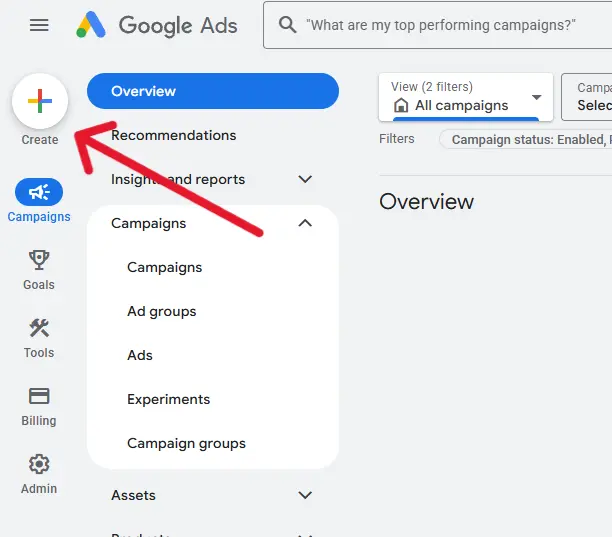
Hit New campaign.
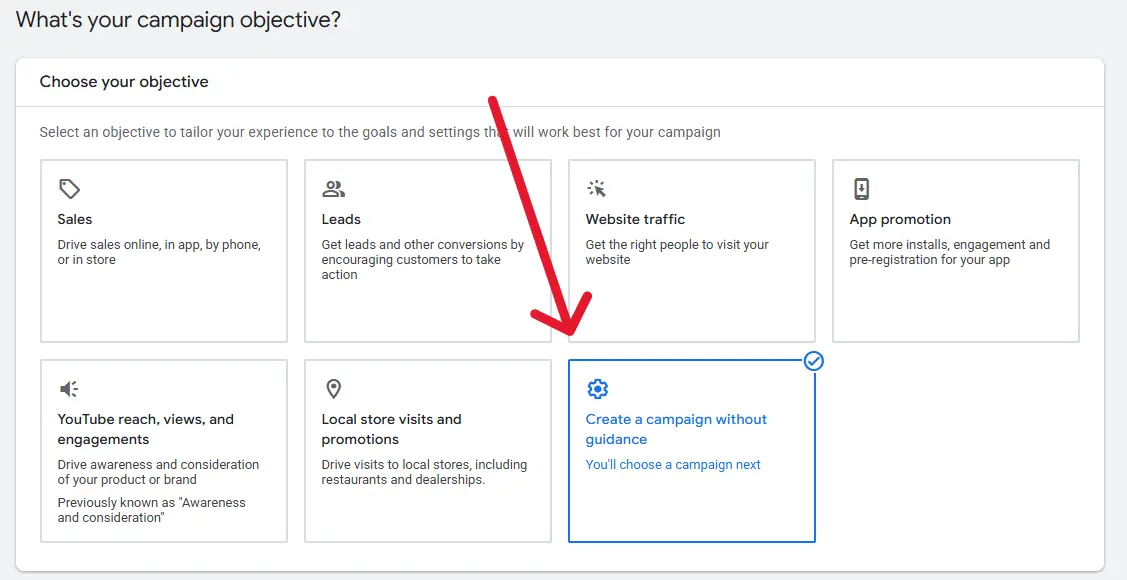
Google will immediately ask you to pick an objective: Sales, Leads, Website traffic, and so on.
Skip it. Choose "Create a campaign without guidance" instead.
Here's why:
Picking a specific objective lets Google pre-select a bunch of settings on your behalf, which sounds convenient but actually just takes some of the control away. Going guidance-free means every setting from here on is a decision you're making on purpose, not one Google made for you.
Step 2: Pick Demand Gen, not Video
Next you'll choose a campaign type. Go with Demand Gen.
You'll still see "Video" as an option - it's outdated and old campaign format, and doesn't really generate good results if your goal is conversions, so just ignore it. Demand Gen is where Google's investing, and it's what's actually been converting for advertisers running video creative over the past few years.
Step 3: Confirm your conversion tracking
Google will check that your tracking is wired up. Assuming it is, hit continue. This is the mechanism Google uses to figure out who to show your ad to and when to spend more. Skipping this step (or having broken tracking) is the single easiest way to waste budget with nothing to show for it.
Step 4: Name your campaign and set your goal
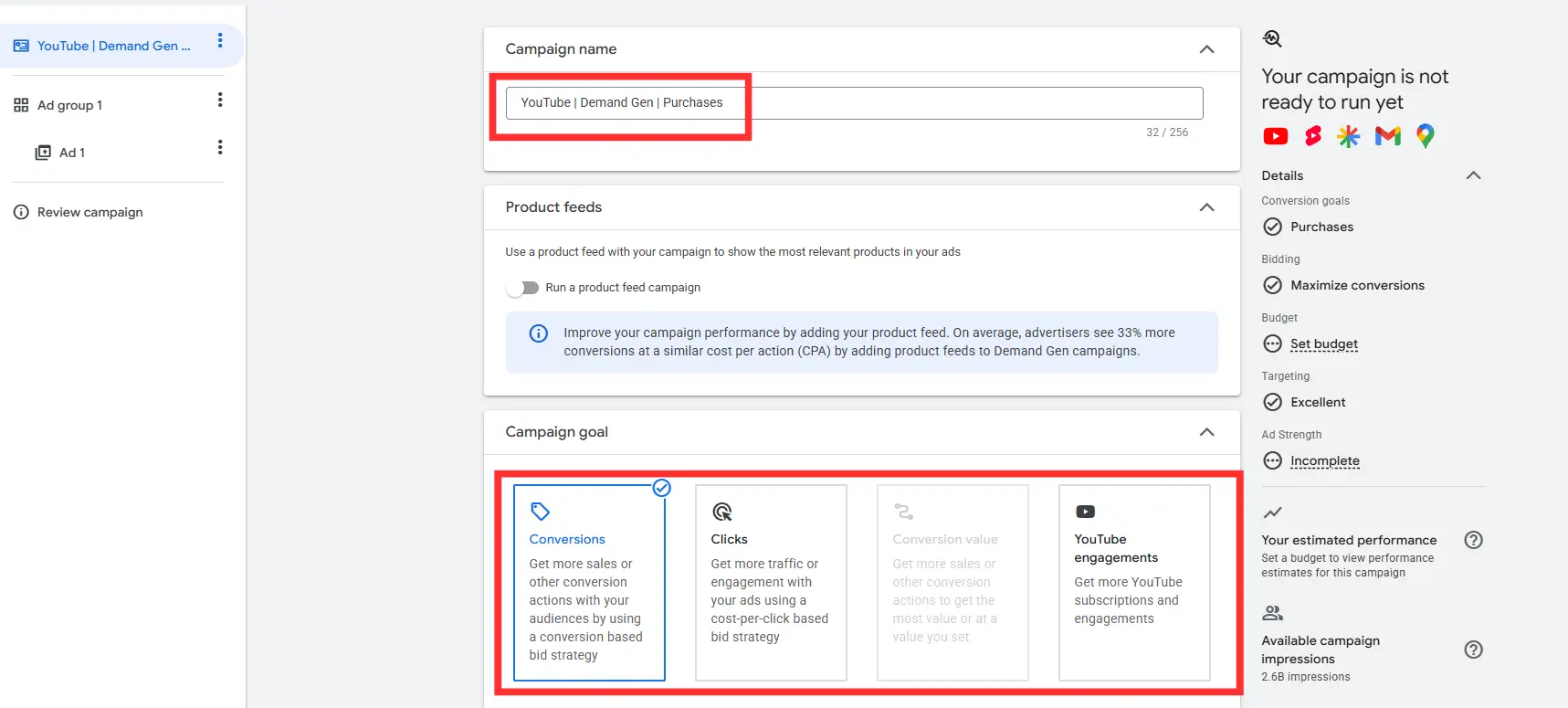
Give the campaign a name you'll actually recognize later, something like "Demand Gen | YouTube | 1" works fine if this is your first one.
For campaign goal, leave it on Conversions if that's already your account goal (usually purchases). If your account has no conversion history yet, that's fine. Google will start collecting it once the campaign goes live.
Leave view-through conversion optimization unchecked, and leave the "optimize using existing conversion data" toggle blank too. That setting is meant for campaigns that already have at least 30 or so conversions logged, which yours won't yet.
Step 5: Set a daily budget that actually gets you data
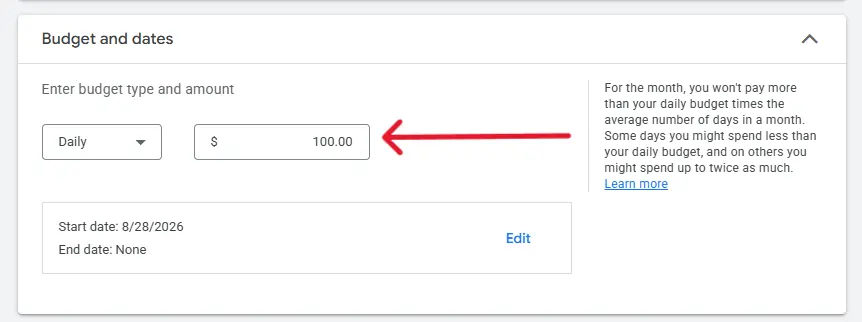
This is where a lot of beginners underspend. I'd recommend starting at $100/day for YouTube ad campaigns.
Technically you can launch on $50, but $100 gives the algorithm enough signal to start optimizing properly in the first week or two. Starving a new campaign of budget just means it takes longer to find its footing. You end up paying in time what you saved in dollars.
If you are curious what results you should expect, we did a breakdown of YouTube ad costs with CPM, CPV and CPC benchmarks plus real numbers from four ad accounts.
Step 6: Skip the extra campaign settings (mostly)
You'll hit a few more toggles here, most can be skipped for a first campaign.
The only question you need to answer is whether your campaign includes EU political ads. In 99.99% of cases, the answer is no. If your answer is yes, this post probably isn't for you.
Step 7: Set your location and language targeting
This is one of the more important sections, so slow down here.
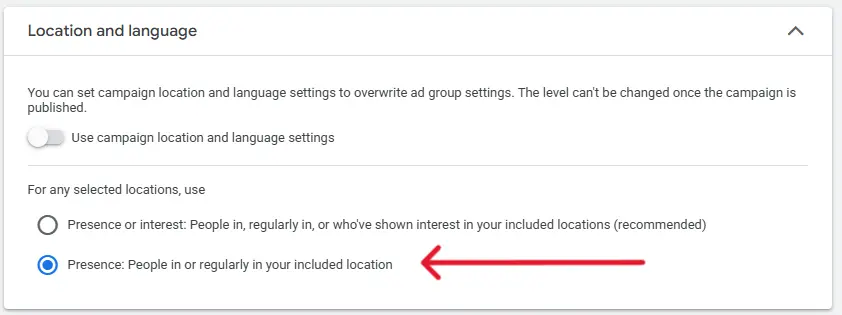
If you're planning multiple ad groups targeting different markets, say, US and Germany, use ad group level location targeting so each group can have its own settings. If you're only launching one ad group to start (recommended for your first campaign), set location and language at the campaign level instead.
The setting that matters most: choose "People in or regularly in your included locations," not the broader "people showing interest in" option. The interest-based setting will show your ad to people who've merely searched about your target country, not people actually located there, which is rarely what you want for a first campaign.
If you're running conversion tracking through Google Analytics, Looker, Triple Whale, or a similar tool, this is also where you'd set up a UTM tracking template. Skip it if you're not using one yet, you can always add it later.
Step 8: Set up your ad group
Name your ad group to match what it's targeting, "US" if it's US-only, for example.
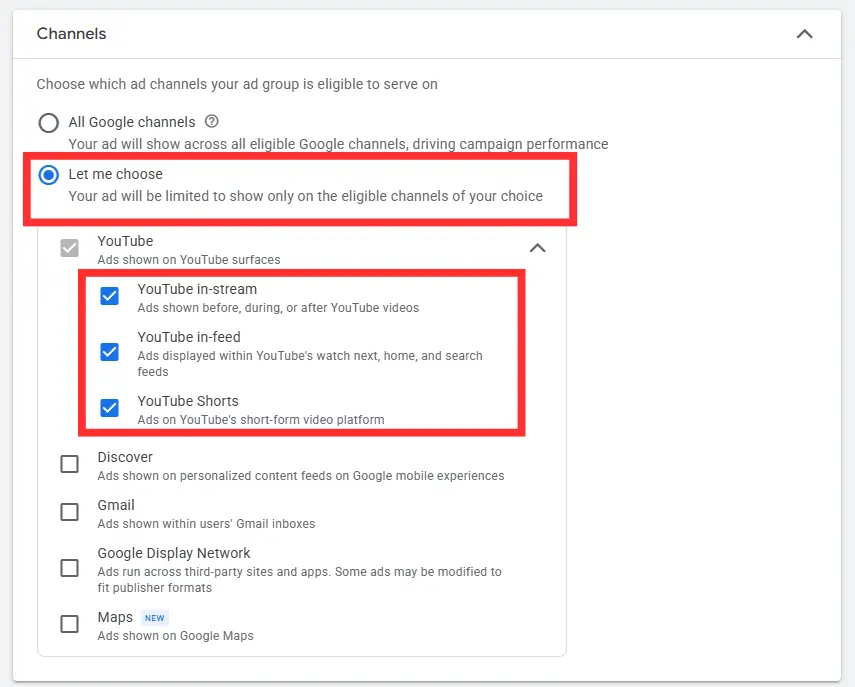
Then the part that's easy to miss: by default, Google will show Demand Gen ads across YouTube, Discover, Gmail, and the Google Display Network.
Deselect everything except YouTube. Otherwise your budget gets spread across placements like Gmail inbox ads and random display banners on third-party sites, not what you signed up to test.
Step 9: Decide what audience signal to add (or don't)
You can add an audience here as a "signal," a starting point that tells Google roughly who your customer is. For a first campaign, it's genuinely fine to leave this blank and let the algorithm find your audience on its own; Demand Gen's targeting has gotten good enough that over-specifying early can hurt more than help.
Leave optimized targeting switched on (it usually is by default). It lets Google expand beyond your signal when it finds people likely to convert.
Step 10: Build your video ad
Choose Video ad as your creative type and give it a name (something simple like "Ad 1" is fine).
Drop in your landing page URL, then paste in your YouTube video URL. Yes, your video needs to already be uploaded to YouTube (even as unlisted) before you can use it here.
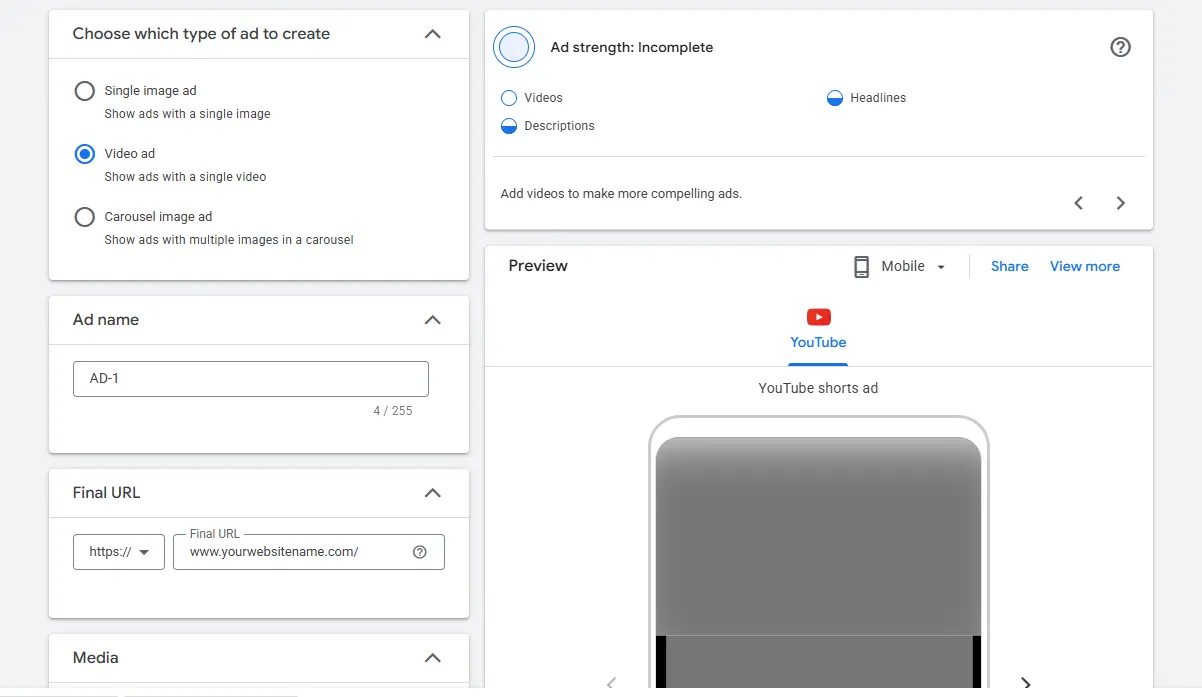
Once you paste the video URL, Google shows you a live preview of how the ad will look on mobile, TV, and desktop, worth checking all three before moving on, since a hook that reads great on desktop can get awkwardly cropped on mobile. If you're unsure where the interface will cover your creative, our YouTube ad safe zones guide has the exact margins per format.
If you're stuck on what to actually make the ad about: don't start from a blank page. Look at what's already working for advertisers in your category: hook structure, pacing, offer framing.
We built VidSniff for exactly this: search hundreds of thousands of real YouTube ads in our YouTube ads library, filter by top performers or highest spenders, and see what a proven creative in your space actually looks like before you write a script.
Step 11: Add headlines, descriptions, and your business name
Google will let you add up to five headlines, five long headlines, and five descriptions. You don't need to fill every slot. One solid headline, one long headline, and one description is enough to launch. More variations can help once you have data to compare against, but for a first campaign, clarity beats options.
Add your business name, and that's the creative side done.
Step 12: Review and publish
Google will flag and highlight any issues or missing information in your campaign settings. Hit Review, check everything over, then Publish.
After publishing your campaign
Remember to check in on the campaign over the next few days: how it's spending, whether conversions start coming in, whether the video preview is rendering the way you expect across devices.
A campaign that looks fine at setup can still need a budget or targeting tweak once real data starts coming in. And if sales are starting to come in, you can start increasing the budget. I recommend increasing 30% per day if you are hitting your target CPA.
Creative testing: how many creatives do you actually need?
A few video creatives are enough to get your first campaign live. But if you're already running ads and want better results, the next lever is creative testing volume.
We ranked advertisers in our index by estimated spend: the median advertiser in the top 1% of spenders runs 109 distinct video ads, versus 18 for a typical active advertiser, a 6x gap.
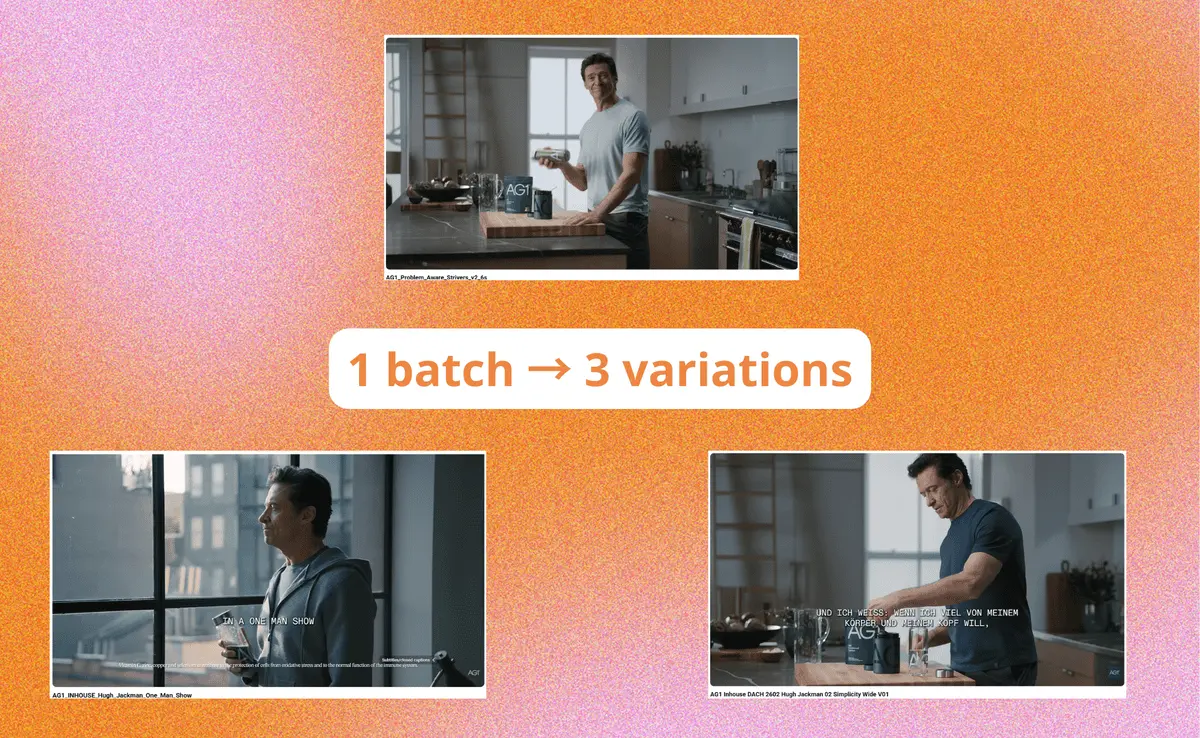
Once you're scaling past your first campaign, a reasonable target is at least 10 new videos a week, shipped in 2 to 3 batches rather than one at a time, varying the hook more than the whole ad. That volume is what it takes to land the rare outlier ad that ends up carrying 36% of a brand's total reach.
It also helps to know that the average ad only runs 74 days and the median just 15, so most of what you ship is supposed to die quickly.
Get started with VidSniff to see what this looks like in practice, and find many high-spending advertisers to get inspiration from. You'll typically find a handful of ideas repeated across dozens of variations, easily identifying which ones are scaling. If you want a starting point, browse our curated YouTube ad examples and ecommerce ad examples.
Common beginner mistakes to avoid
- Launching on the Video campaign type instead of Demand Gen. It's still there in the list, but it's the outgoing option.
- Setting budget too low to get meaningful data. $50/day technically works; $100/day gets you there faster.
- Leaving all placements enabled. If you meant to run a YouTube ad, make sure it's actually only running on YouTube.
- Using "interest in" instead of "presence in" for location targeting. This is one of the reasons to end up showing ads to the wrong country.
- Skipping conversion tracking setup. This is the foundation of your YouTube ads strategy if you are optimizing for conversions. Without it, Google is optimizing blind.
YouTube ads: frequently asked questions
How much should I spend to launch my first YouTube ad campaign?
A daily budget of $100 gives Google's algorithm enough signal to start optimizing within the first one to two weeks. You can go lower, but expect a slower learning phase.
Should I use Demand Gen or Video campaigns for YouTube ads?
Demand Gen. Video campaigns are the older format and are being phased out; Demand Gen is where YouTube's ad performance and targeting investment is currently focused.
Do I need a professional video to run a YouTube ad?
No, you need a video uploaded to YouTube (unlisted is fine) with a URL you can paste into the campaign. Production quality matters less than having a clear hook and offer.
How do I find inspiration for my first YouTube ad?
Look at ads already running in your category rather than starting from scratch. Tools like VidSniff let you search and filter real, currently running YouTube ads by performance so you can see what's actually working before you write your own script.